


Getting Started
How to get the Weeve app on your iPhone
Open the App Store, search for "Weeve", tap Get to download it, then open the app and tap Log in or Get Started.
iPhone
Drew Spiegel
6 steps·Aug 16

Weeve Help
Find step-by-step help for getting started, solving common issues, and learning how to use Weeve.
Search Help
Search setup steps, troubleshooting help, and Weeve how-tos in plain language.
Platforms
Help Articles
Browse the latest support articles across setup, troubleshooting, and product basics.
Learn the basics and start saving with Weeve.
Open the App Store, search for "Weeve", tap Get to download it, then open the app and tap Log in or Get Started.
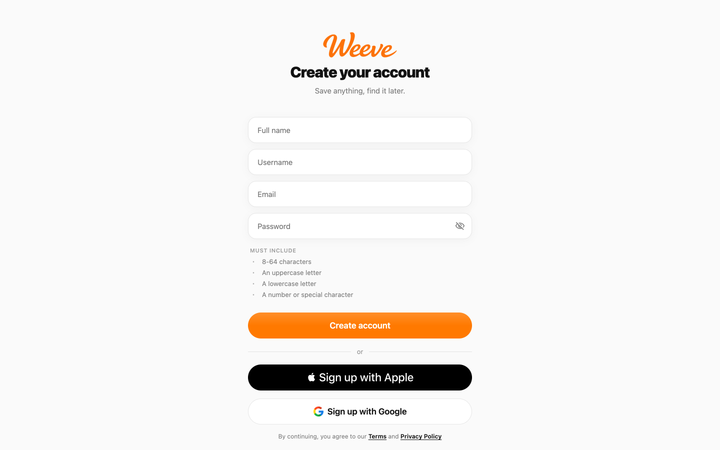
Create an account with your email, Apple, or Google, on the web or on iPhone, then save any link. It lands in Quick Saves, your instant-save inbox, so you can organize it later.
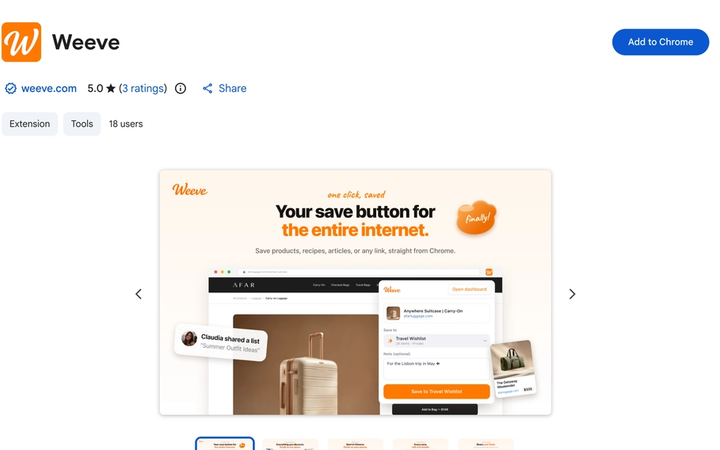
Install it from the Chrome Web Store, pin it to the top of Chrome with the puzzle-piece menu, and sign in. From then on, open a regular webpage, click the Weeve icon, check the preview and destination, then click the Save to button.
Open any share menu, scroll to the end of the app row, tap More, then add Weeve to your favorites. From then on, sharing anything to Weeve opens Weeve's own sheet right over the app you're in.
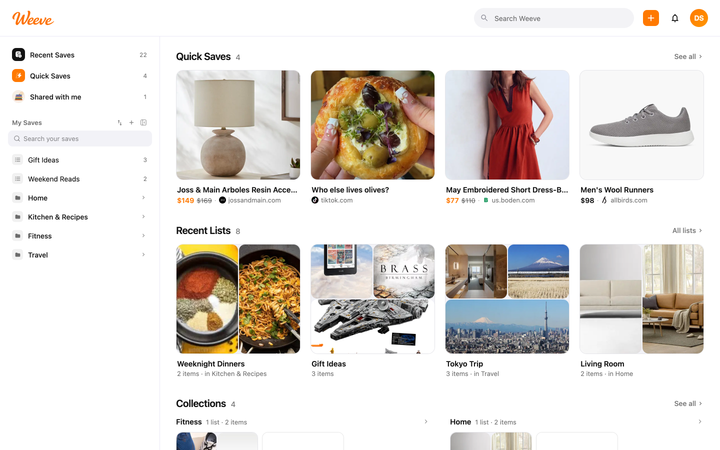
Quick Saves is your save-now, organize-later inbox. Check the Save to row: after a recent save to a list, that list may still be selected. Choose Quick Saves when you want to sort things into lists later.
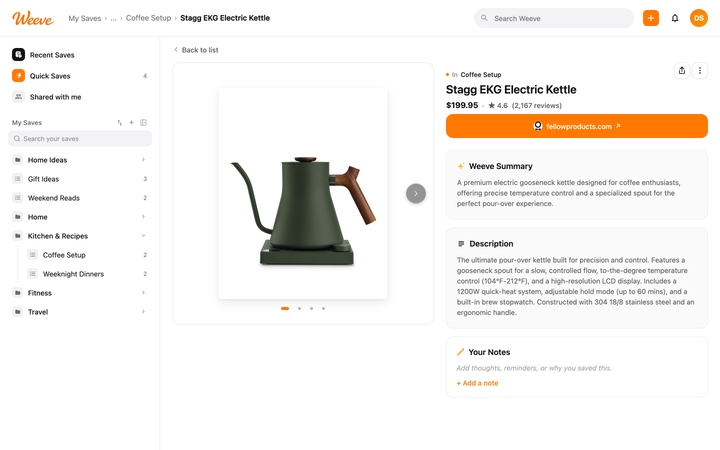
Every save becomes a visual card with a picture, a title, the site it came from, and the price when there is one. Open the item to see more, including the Weeve Summary.
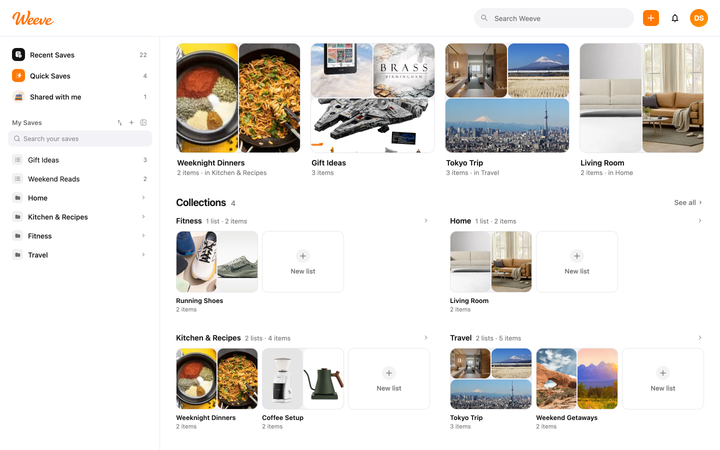
Collections are the big folders, lists live inside them, and items are the saved links inside lists. And it all stays flexible: lists can live on their own too, and Quick Saves holds anything you haven't sorted yet.
Save anything you find across the web and your apps.
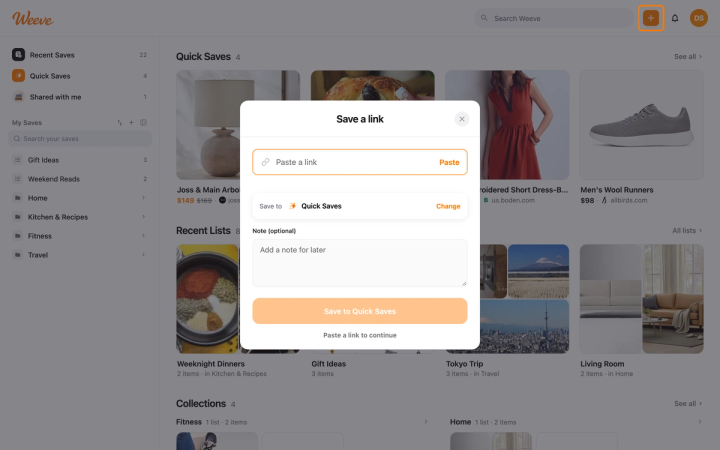
Click the orange + at the top of the page to open Save a link, paste your link, and check the Save to row. Click the Save to button, which names the destination. To choose somewhere else first, click Change and pick a list or Quick Saves.
Share any link to Weeve from another app's share menu, or tap the orange + in the Weeve app and choose Save a link. Both give you a preview, a Save to row, a note field, and a save button.
Click the Weeve icon at the top of Chrome on any page. A small window previews what you're saving, already set to Quick Saves. Click Save to Quick Saves and it's in your account. Pick a specific list or add a note first if you like.
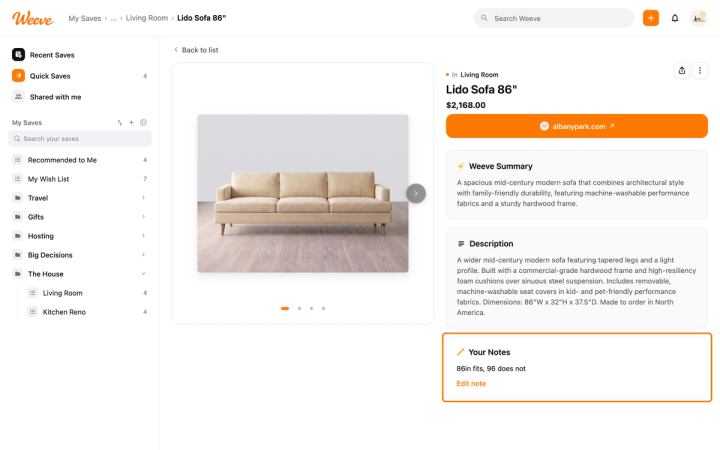
Type it in Note (optional) when you save a link, or open the item afterward and use + Add a note in Your Notes to add or change it any time.
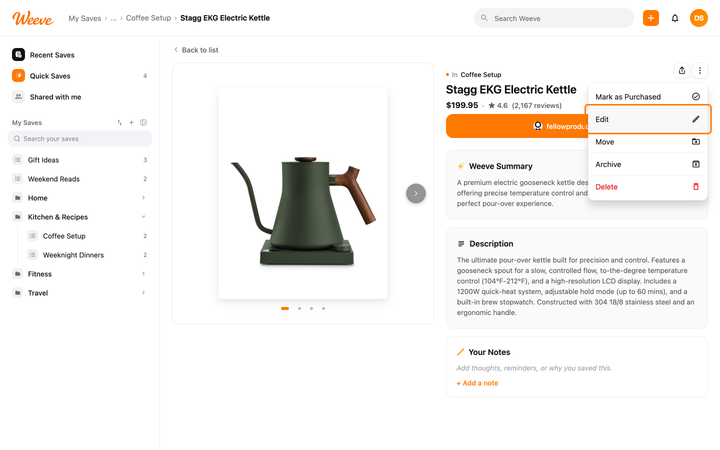
Yes. Open the item's menu and choose Edit. Edit Item lets you rewrite the title, show or fix the price, and choose, remove, or upload photos, on the web and in the iPhone app. Your note lives in Your Notes on the item's page.
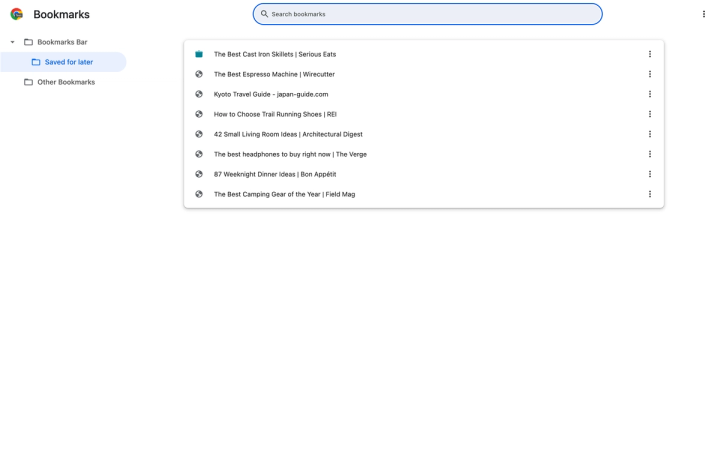
Weeve doesn't have a bulk bookmark-file import. Open a bookmark, click the Weeve icon, check the preview and click the Save to button. Work through the bookmarks you still want and skip the ones you no longer need.
Keep your saves organized and easy to find.
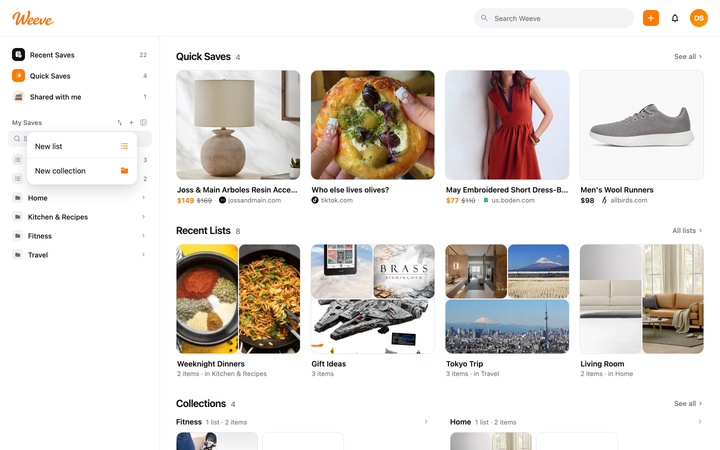
On the web, click the small + beside My Saves in the left sidebar and choose New list or New collection. On iPhone, tap the orange + next to the tab bar. You can also create either one in the middle of saving. Standalone lists start Private on the web and iPhone and new collections start Public.
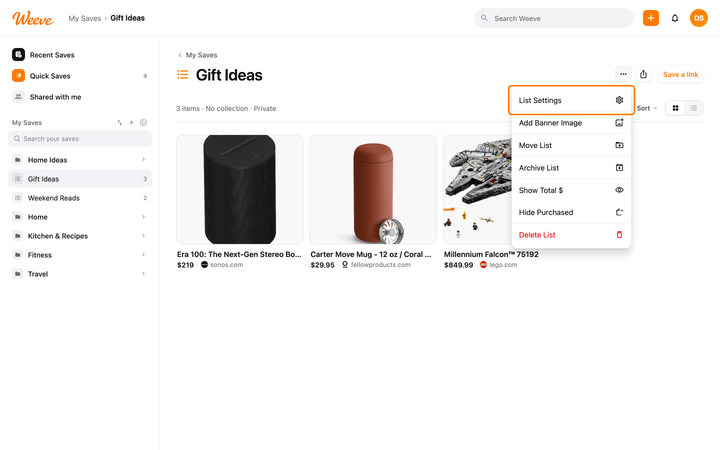
Open the list's ⋯ menu and choose List Settings. Type the new name, then click Save changes on the web or tap the orange check on iPhone.
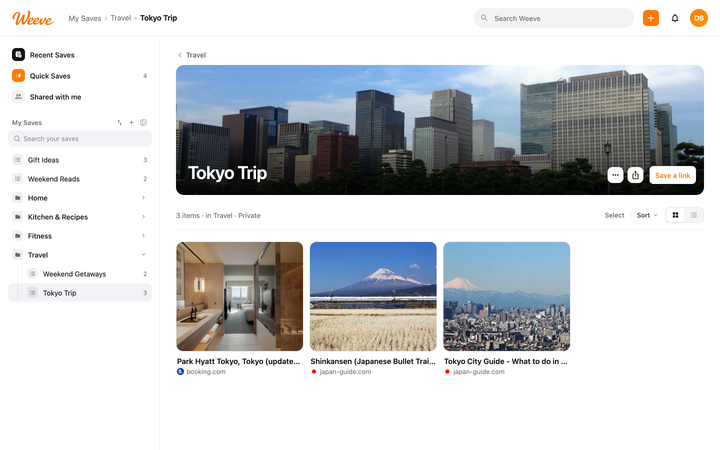
Open the list's ⋯ menu (on iPhone or the web) and choose Add Banner Image. Pick a wide photo (16:9 works best), then Save banner, and it becomes the list's header everywhere.
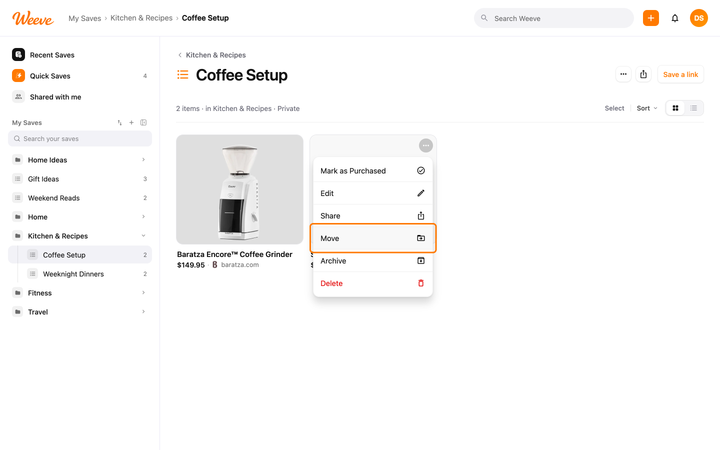
Open the item's ⋯ menu and choose Move. Pick the destination list (or make a new one), then confirm with the button that names it, like Move to Gift Ideas.
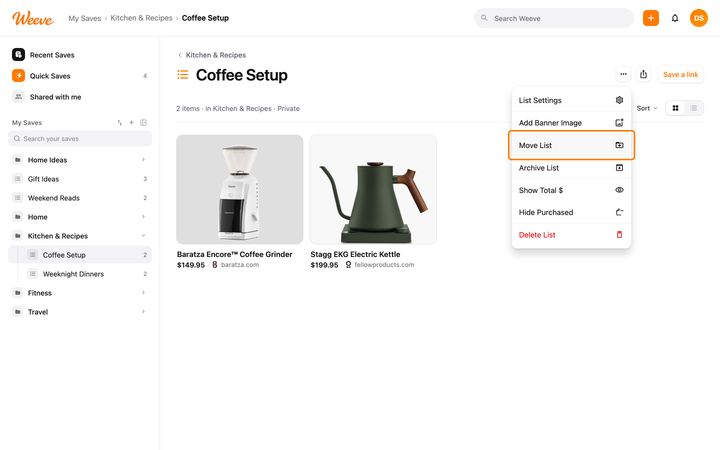
Open the list's ⋯ menu and choose Move List. Pick the collection it should live in (or None), then confirm with the button that names your pick, like Move to Home.
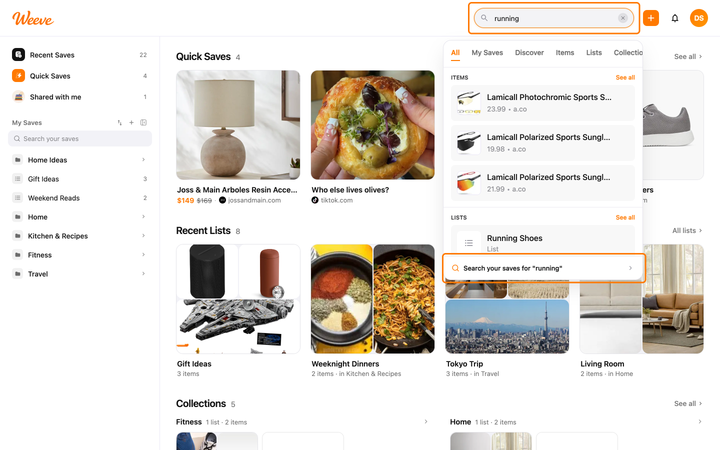
Use search. On the web, type in the Search Weeve bar at the top and click My Saves in the row of tabs to look only through your own things (the "Search your saves" box in the sidebar works too). On iPhone, tap Search at the bottom and stay on My Saves. Discover, on both, is for finding people.
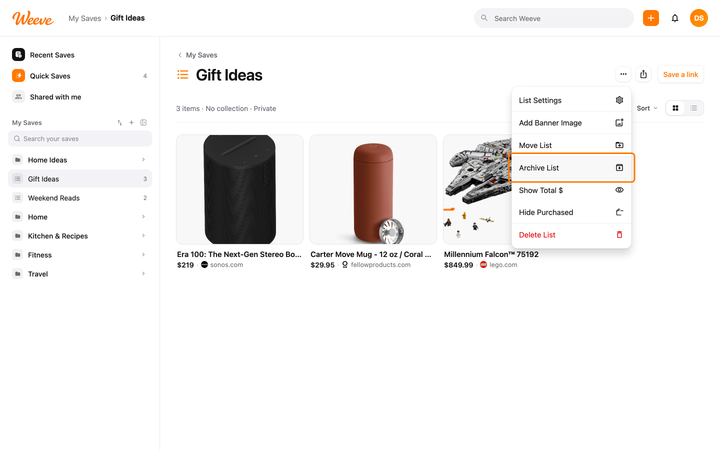
Archive tucks things away privately and lets you restore them anytime. Delete is permanent. When in doubt, archive.
Share lists, collaborate, and control who can see what.
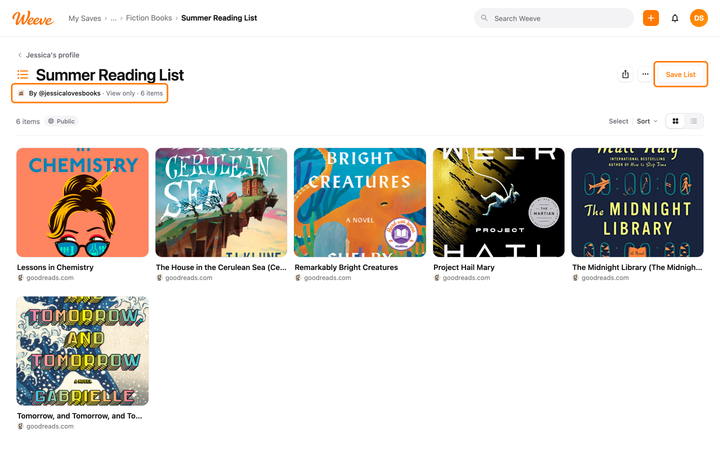
Open the shared list and save any item to your own lists. On the web, choose Add to My list in the item's ⋯ menu. In the iPhone app, open the item and tap the bookmark at the top right, or use Select to save several at once. The original list stays untouched.
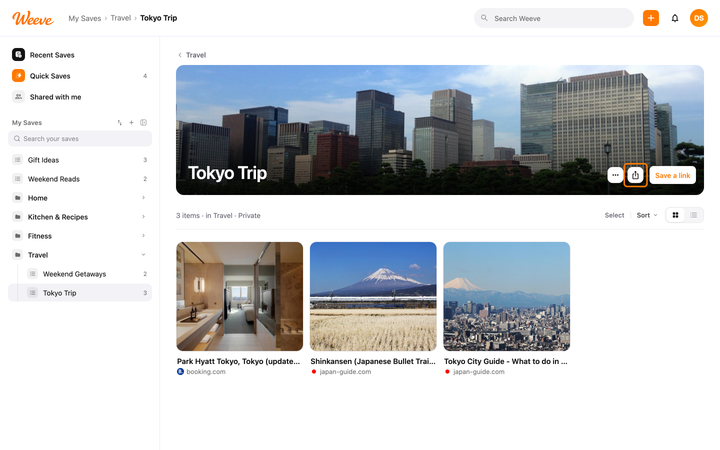
Open the list and choose Share. Use Invite to add people, pick who the link works for under Who can access, then use Copy link or Share via.
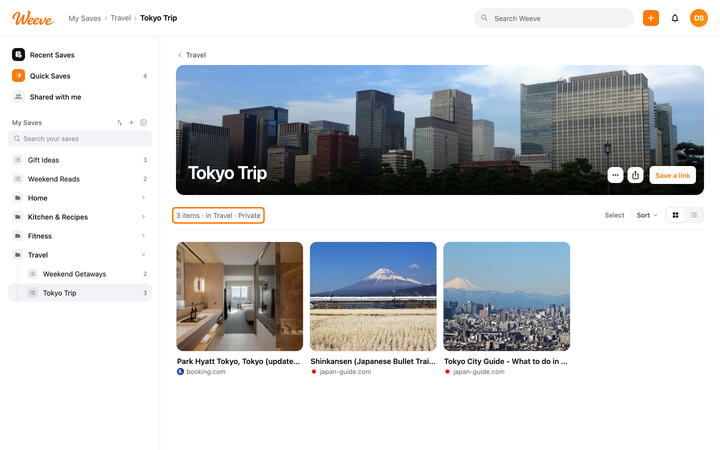
Every list is Public, Anyone with link, or Private, and a list in a collection can also follow the collection. Change it in List Settings or under Who can access in the list's share sheet. Standalone lists start Private on the web and iPhone, so nothing is shared until you decide it should be.
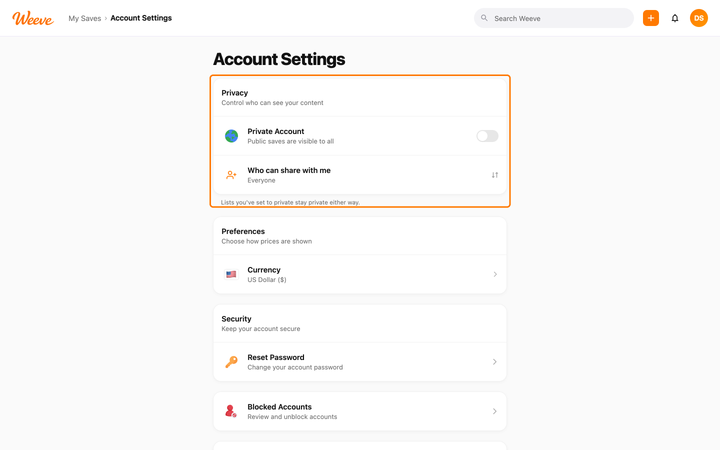
Your profile starts out public and shows your public lists. To make your account private, open Account Settings and turn on Private Account in the Privacy section. New followers then send a request, and only followers you approve can see your public saves.
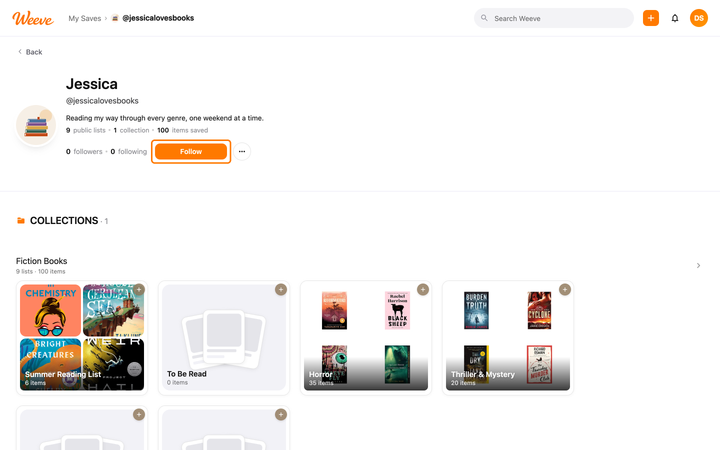
Search for them with Discover (a tab in the Search Weeve results on the web, or the Discover side of the iPhone Search tab), then tap Follow next to their name or on their profile. If their account is private, the button reads Requested until they approve you.
Manage your profile, account, sign-in, and preferences.

Yes, Weeve is free. Unlimited saves, lists, collections, and sharing, on the web, in the iPhone app, and with the Chrome extension. There's currently no paid plan.
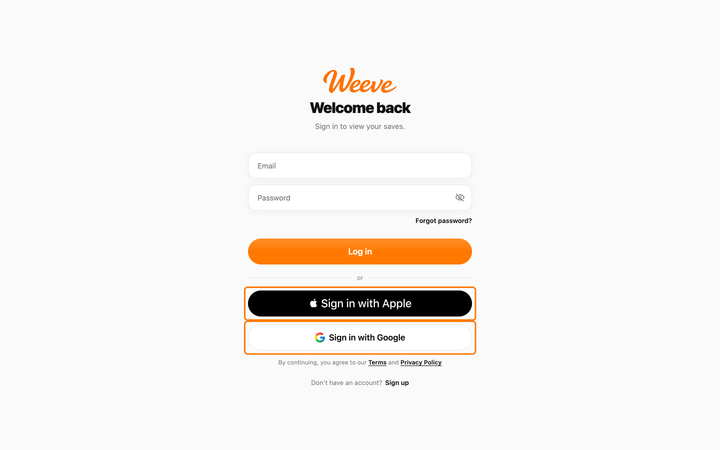
Yes. The sign-in screen on the web and on iPhone has Sign in with Apple and Sign in with Google, right under Log in. Use the same sign-in method and account that contain your saves.
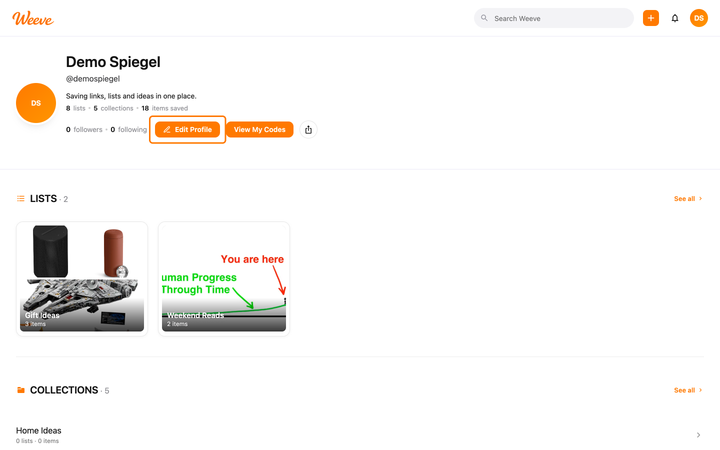
Open Edit Profile (from the menu under your profile picture on the web, or from the Profile tab on iPhone) to set your photo, name, @username, and bio, then choose Save.
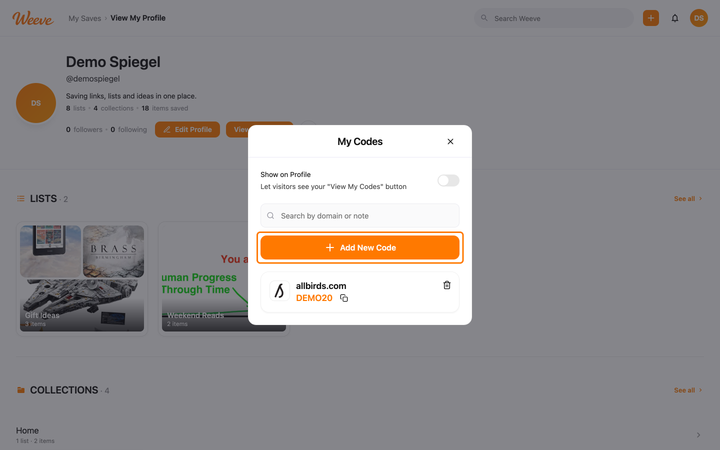
My Codes is your promo-code wallet, on the web (under your profile picture) and in the iPhone app (on the Profile tab). Add a code with its website and an optional note, find it later by searching, and copy it when you check out.
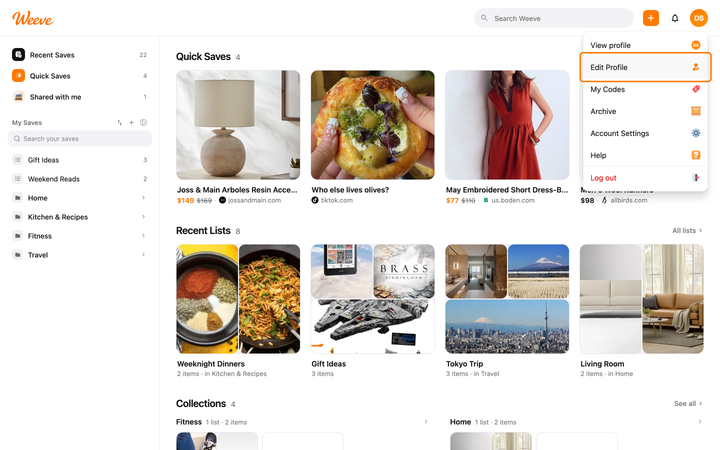
Open Edit Profile and choose Change email under your email address. Enter the new address and your current password, then type the 6-digit code Weeve emails to the new address. If you don't see Change email, contact support from the address on your account.
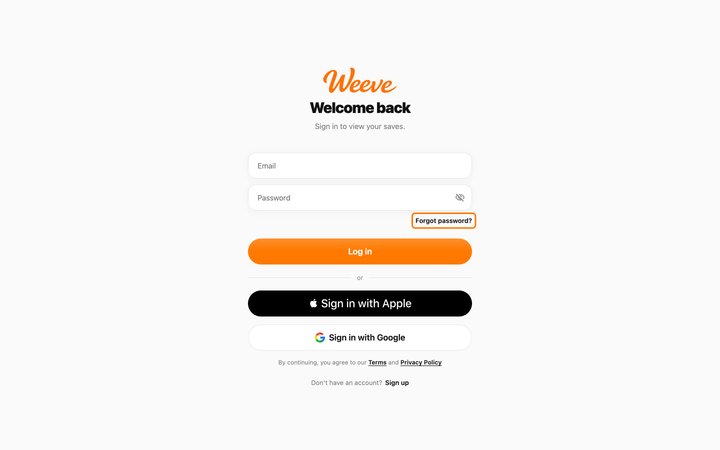
Forgot it? Choose Forgot password? on the sign-in screen and Weeve emails you a reset link. Know it and want a new one? Open Account Settings and choose Reset Password under Security, on the web or on iPhone.
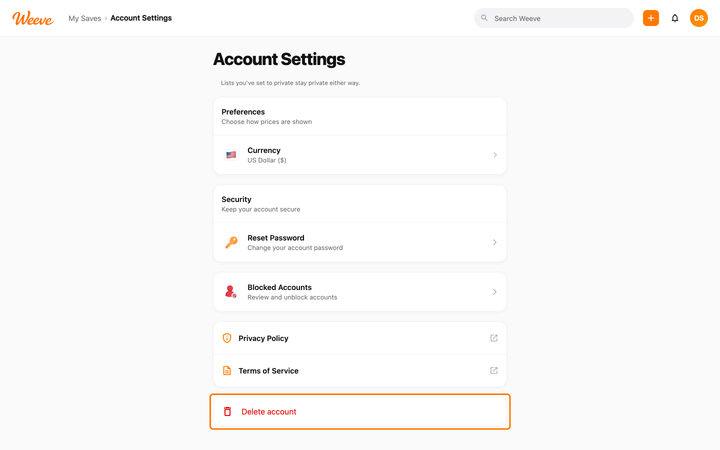
On the web or on iPhone, open Account Settings and choose Delete account at the bottom of the page, then confirm with Delete Account. Deletion is permanent.
Fix common issues with Weeve.
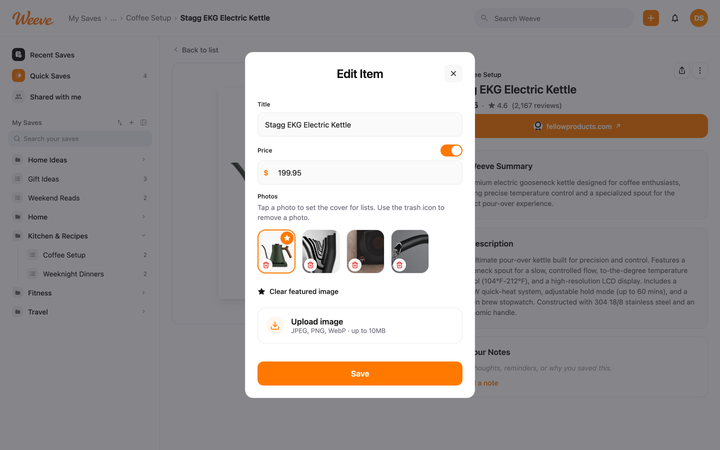
Some pages keep their details behind a sign-in or subscription, so there's less for Weeve to gather. You can fix the title, price, and photos with Edit, or try saving the page's full link from your browser.
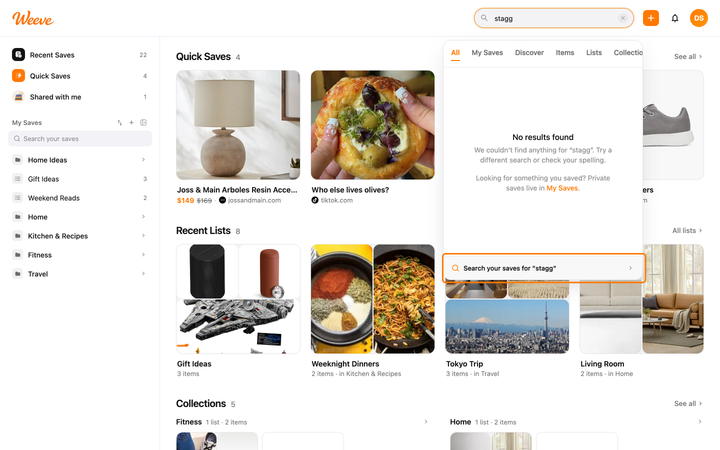
Search for it first, then check Quick Saves and the Archive, and make sure you're signed in to the right account. If it still doesn't appear, contact support with the item's name or link.

Most of the time, the two devices are signed in to two different accounts, usually because each one used a different email address. Check the @username on both devices first; that settles most cases.
It's almost always one of a few things: the extension is signed out (even when weeve.com is signed in), the icon isn't pinned, the page is one of Chrome's own screens, or Chrome switched the extension off. Each has a quick fix below, and the Weeve window's message usually tells you which one.
Still need help?
Send your question to our support team and we will help you troubleshoot it.